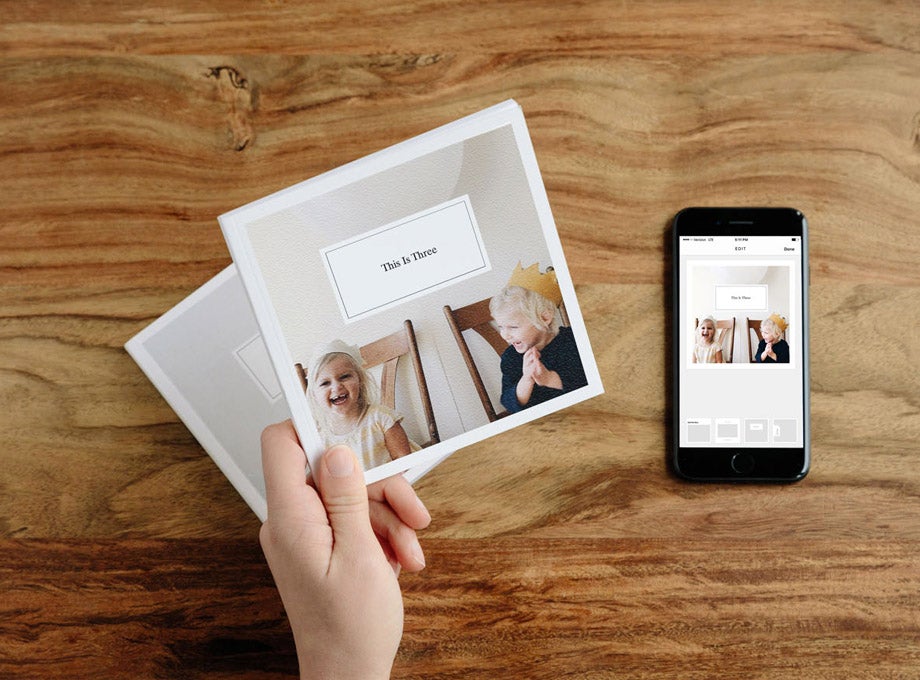
If you’re like us, that camera roll of yours is anything but
organized. And while our phones hold a digital record of our days,
we’re sure of one thing: it’s time to make space for what’s to come.
Follow along for simplified tips to clean up your camera roll — you’re
10 steps away from an organized photo life.
Tip 01
Select Favorites
Let’s start with identifying the photos that mean the most to you.
Set aside time to press the heart on the bottom of the photos that
are most significant. This will automatically filter them into your
“favorites folder.” Pro tip: be decisive. Only save the phots that
you know you will want to return to. Make sure you have 1-2 photos
of each major event for recording’s sake, but don’t get tied up
about each individual image.
Tip 02
Embrace the Delete Button
Set yourself up for success and make the delete button a good
friend. Trust us — decluttering can only be achieved by getting rid
of the images that are duplicates, blurry, or unnecessary
screenshots. If you didn’t put a heart on the image originally,
consider why you are keeping it around. Clean out any photos that
don’t capture your attention or epitomize a moment. Short on time?
Press the “select button” in the upper right corner to drag over
multiple images to delete at once.
Tip 03
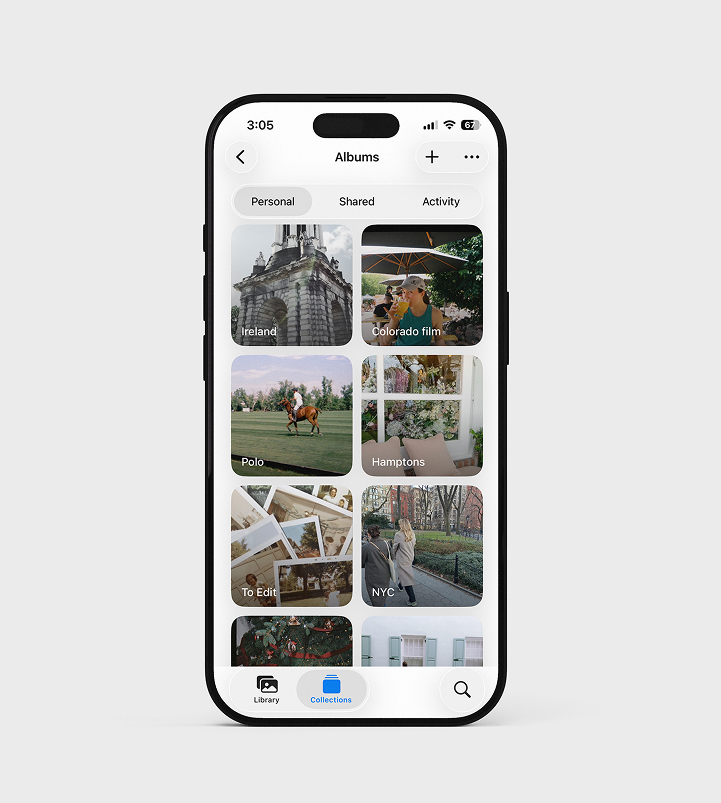
Create Albums
Once you’ve simplified your camera roll, create a series of albums
under the “My Albums” section to categorize your photos. Some of our
favorite ways to organize? By months, people, or events. Take a
mental inventory of the photos you gravitate towards taking, and
then create your albums based on what makes sense from that.
Tip 04
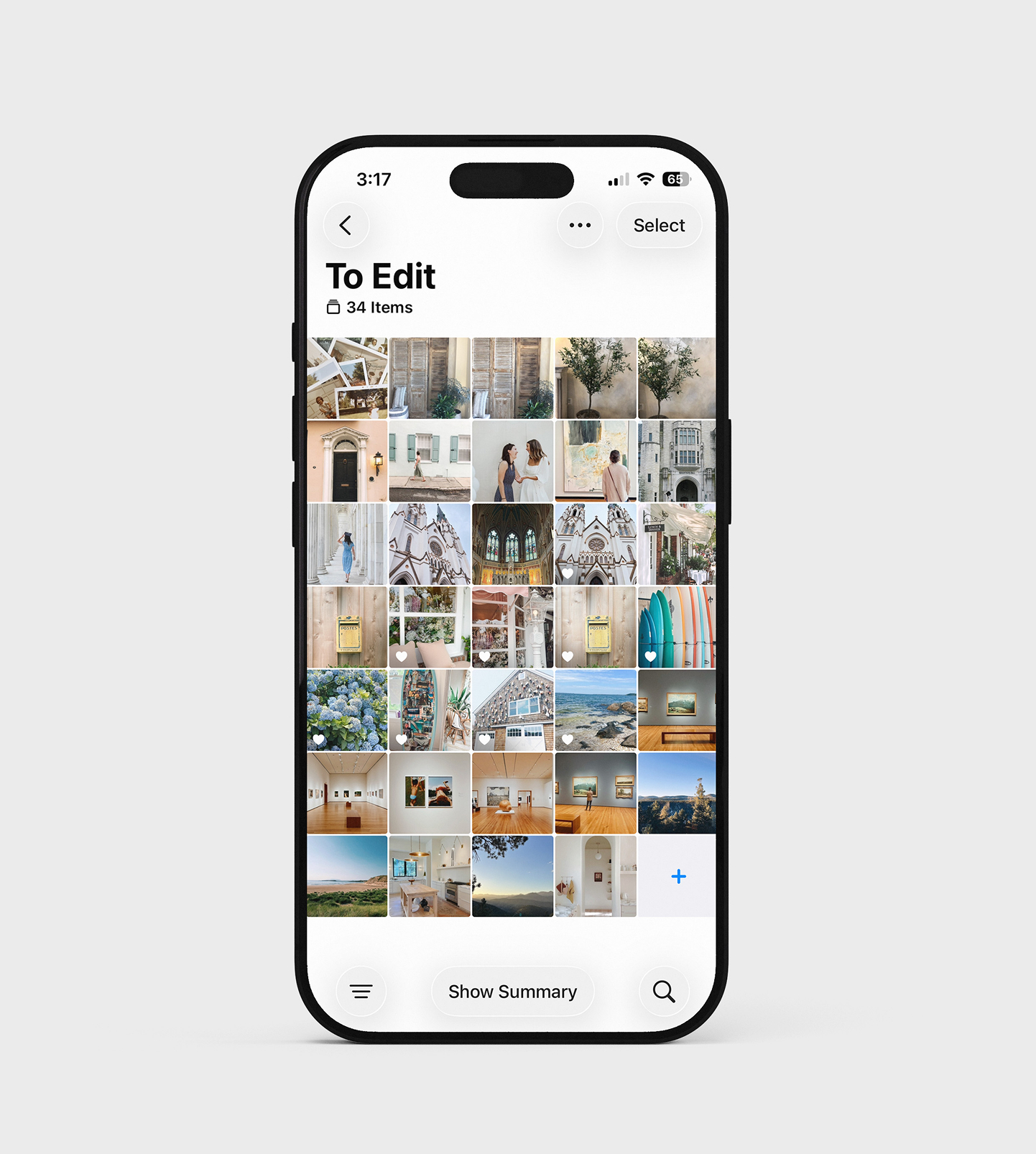
Make An Edit
If you find yourself always scanning your photo library to select
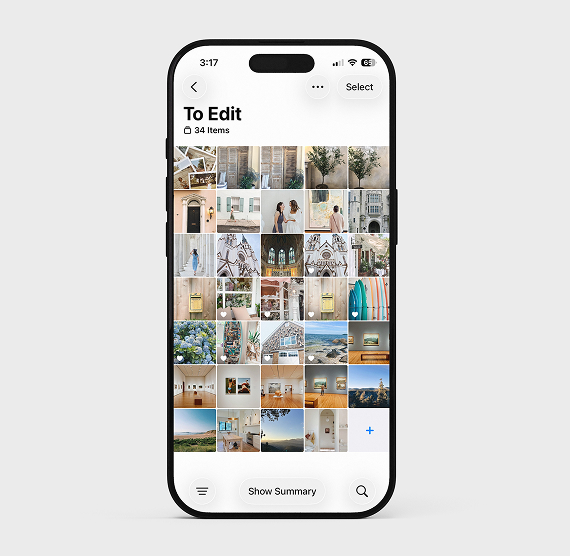
the photos you want to edit and share, we recommend creating “To
Edit” and “Edited” folders in your albums. Make your way into your
“Favorites” folder to select the photos that you want to edit.
Select and copy them into the “To Edit” folder so that you have a
centralized spot for all of the photos that need to be edited. Pro
tip: select all of the photos at once from your favorites folder by
hitting “select all” — transfer them into the folder in bulk. Once
you edit a photo, make sure you add it to your “Edited” folder.
Tip 05
Set Priorities
Organize your albums in terms of priority so that you see the most
important ones first. (We tend to put the “To Edit” and “Edited”
first.) To rearrange their order, scroll down to your albums and and
tap on "Albums.” Press and hold down the album to drag it to where
you want in the order
Tip 06
Set A Routine
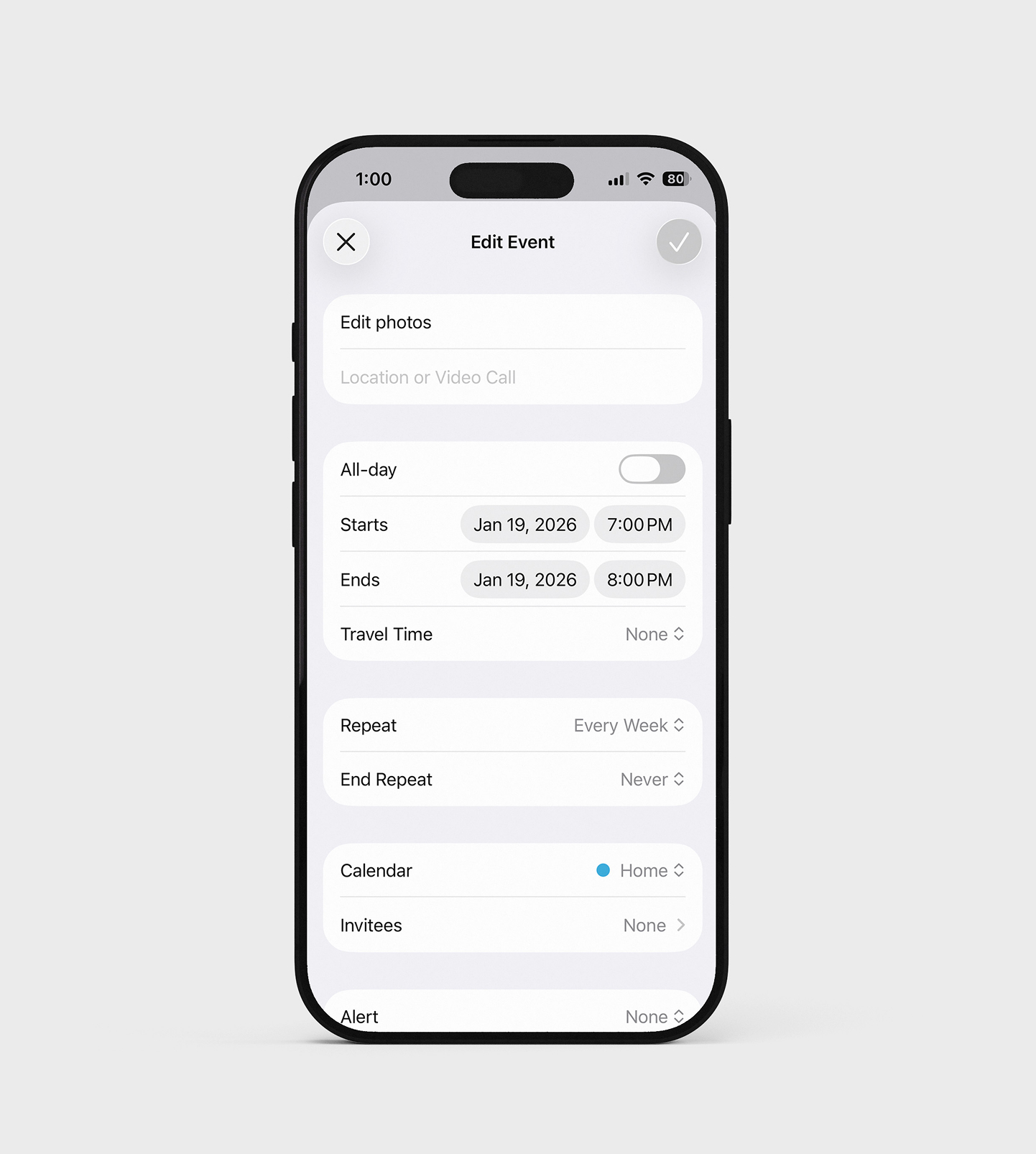
To make your organized photo life into a habit, set a recurring
event on your calendar to remind yourself to pay a bit of attention
to the process. Need a little inspiration to start? Here's how we do
it —
Weekly: Delete photos that don't make your heart skip an extra
beat; favorite the ones that do.
Monthly: Categorize photos from the previous month into their
corresponding albums, and then make sure to back them up into
Google Photos.
Yearly: Use your organized albums as a compass to create gifts or
yearly photo projects.
Tip 07
Back It Up
Lo and behold, the most crucial (and missed) step. We’ve found
Google Photos to be the simplest, most effective way to back up your
photos. Download their app to get started. We recommend “backing up”
your library once you’ve gone through and deleted photos so that it
resembles an organized camera roll. If you set the backup period to
manual, you can control when the app backups the photos. (Pro tip:
create a recurring event on your calendar to delete, categorize, and
back up your photos every month). This leads us to...
Tip 08
Search and Select
If you find yourself overwhelmed with the sheer quantity of photos,
use the “search” and “select” buttons to add specific photos into
their corresponding albums, in bulk! Head to the “photos” tab on
your albums, type in what you’re looking to organize into the search
icon (like names of cities, dates, etc.) and it will pull any
matching pictures. Hit the “select” button and hold and drag down on
the photos to select them all at once. Then, add them into their
corresponding album.
Tip 09
Find Faces
Speaking of people, there's no better way to easily find your
favorite faces than by using the “people” album in your camera roll.
The album will automatically find faces and group them together so
that all you have to do is go in and approve the set of photos it
has categorized. Gone are the days of searching through the entirety
of your photos for that one specific photo of that one specific
person.
Tip 10
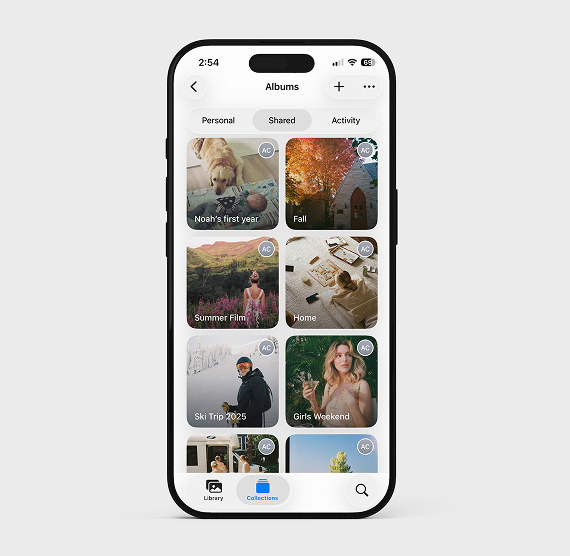
Better When Shared
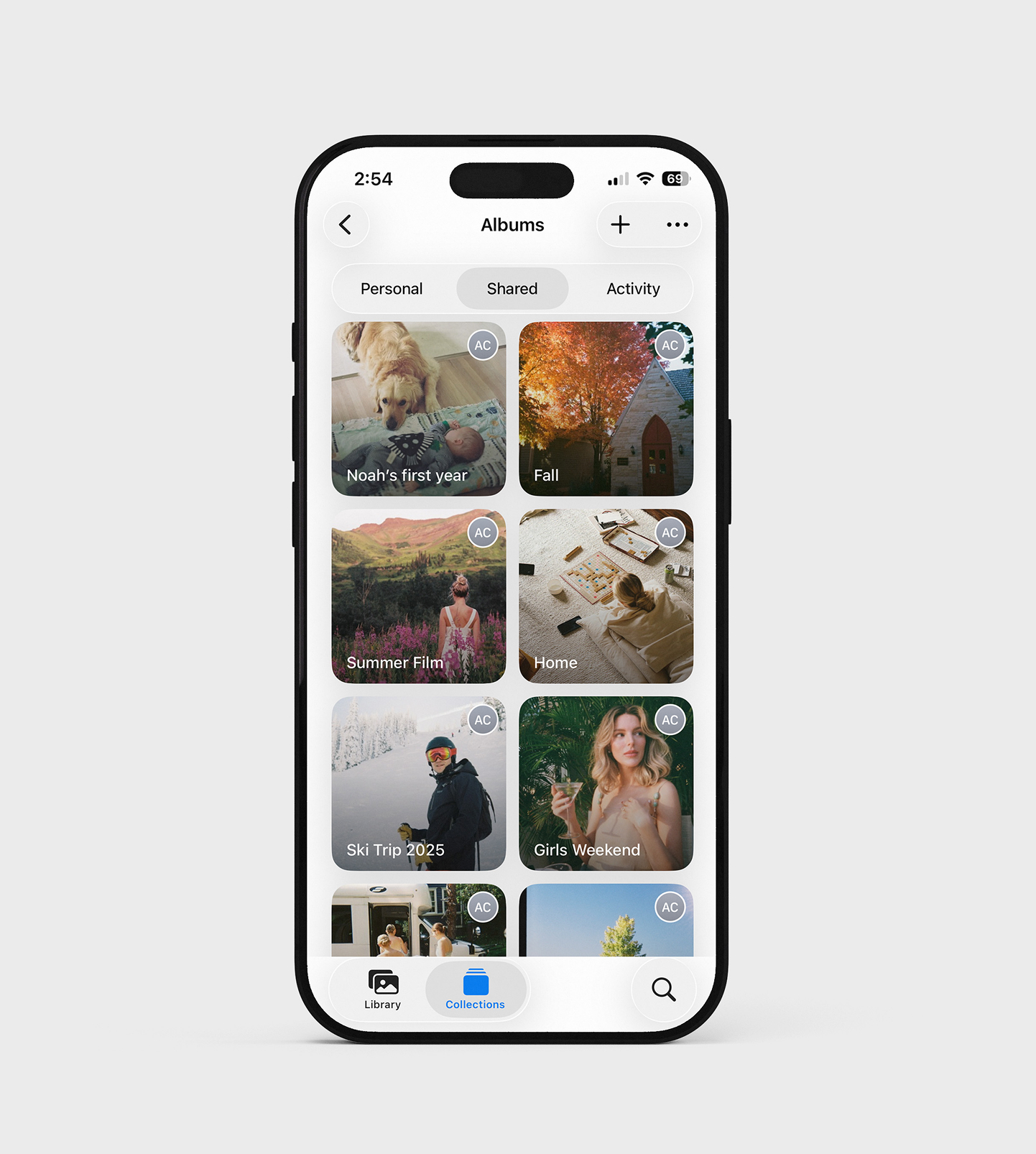
Another easy way to gather photos in an organized way is by
utilizing shared albums. These albums are “shared” with your friends
and family (think: a folder to which everyone can contribute
photos.) Go through this album and add the photos that you want to
keep on your phone by selecting them and pressing “save image.”






.jpg)